Instructors: CourseLink Tools

The information on this page is intended for instructors using a CourseLink course site.

Import / Export / Copy Components

What is the Import/Export/Copy Components tool?

The Import/Export/Copy Components tool lets you copy quizzes, content, grade items, discussion forums, assignments folders, and nearly every other type of component from another course or package. Copying components saves you from having to recreate your course materials and can significantly reduce the amount of work required to create or re-offer a course.

You can use the Import/Export/Copy Components tool to:

  • Reuse components from your previous course offerings.

  • Import material from an external source (other learning management systems, publisher resources, etc.)

  • Export materials in your course for use outside of CourseLink.

  • Copy components created by your peers into your own course offering.

Accessing the Import/Export/Copy Components Tool

The Import/Export/Copy Components tool can be accessed by users with the Instruct-build-grade role (typically instructors of course sites supporting face-to-face course offerings) by following the steps below:

  1. Access the course site to which you you want to copy course components

  2. Click Course Admin on the navigation bar

  3. Select the Import/Export/Copy Components tool (if you have categories enabled, it will appear under the Site Resources heading)

Using the Import/Export/Copy Components tool

For the most up-to-date information on how to use the Import/Export/Copy Components tool, please see the following links to the Brightspace help documentation site:

Important Notes

  • This tool is only available to course instructors with the Instruct-build-grade role (typically those who are teaching courses that are delivered face-to-face)

  • Users will only be able to copy components from course sites where they also had the instruct-build-grade, or instruct-copy role

  • If you require access to another instructor’s course site to copy their components, please contact them directly and request that you be added to their site with the Instruct-copy role (CourseLink Support cannot grant you access to another instructor’s course site)

When and why to use Import/Export/Copy Components?

The import/Export/Copy Components tool can save instructors considerable time in a number of different scenarios.

Quickly setting up course sites for courses you’ve taught previously

If you teach a course where the content, assessment and delivery doesn’t change much from one semester to the next, then your entire course site can be setup in a matter of minutes by copying the content (lecture slides, reading materials, etc.), tools (Dropbox, Quizzes, Discussions, etc.), and assessment setup (Grades, Rubrics, etc).

During the copy process you can also use the Offset Dates feature to move all your previous due dates and release dates ahead a set number of days to save even more time!

Teaching a course that was taught by another instructor previously

If you’re teaching a course that was previously taught by another instructor and you are planning to use all or some of the same setup that they had previously, you may be able to get a head start by copying components from their site to yours.

Please keep in mind that a course site’s content and setup is considered the property of the instructor(s) who taught the course; you will need to contact them and request to be added to their site via the Classlist with the Instruct-copy role to be able to see their site as an option when copying components.

NOTE: If the previous instructor cannot be reached, CourseLink Support can grant that access with your department Chair’s direct consent.

import packages from publishers and vendors

Often a publisher or vendor you are working with will provide access to packages of content, quizzes or quiz questions that are compatible with a learning management system like CourseLink. It’s always a good idea to see if they have any Brightspace/D2L compatible packages available for download that could then be copied into your course site via the Import Components option.

Taking your course to go

If you are moving to another institution that is using a compatible learning management system, you can use the export option to download a copy of most of your course site’s components in a package that can be imported to the learning management system at your new institution. This works best when the other institution is also using the D2L Birhgtspace LMS, however it will also work to some degree with some other compatible learning management systems.

Tutorial Videos


Import/Export/Copy Components FAQs


Related Resources and Programming

Coming soon!


Related Tools

  • Turnitin

  • Grades

  • Rubrics

  • Groups

  • Content


Need More Help?

If you're still having trouble, please contact the CourseLink Support team for assistance.



I-CL-ContentGuest User
Announcements

What is the Announcements tool?

The Announcement tool enables you to create news items that help communicate course updates, changes, and new information to your users quickly and effectively. Since Course Home is the first page that users often see when they log in or access their courses, the Announcement widget is a good area for displaying important information.

Announcement items appear in the Announcement widget, but CourseLink users can also receive instant notifications about postings through email and SMS (text messages). Please note that students do have the ability to turn off their announcement notifications as well as block them from specific course sites.

Accessing the Announcements Tool

The announcements tool is available via a widget on the default course home page of a CourseLink site. The options can be accessed from the widget using the context menu (down-facing arrow) to the right of the title.


It can also be accessed via the Course Admin link from a course navigation bar by following the steps below:

  1. Access the course site

  2. Select Course Admin on the navigation bar

  3. Select Announcements (if the tools are sorted by category, Announcements will appear under the Communication heading)

Using the Announcements tool

For the most up-to-date information on how to use the Announcement widget, please see the the following links on the Brightspace help documentation site.

When and why is it a good idea to use the Announcements tool?

The announcements tool is a great way to communicate and engage with students outside of class time.

That said, it is important to remember that students will only see an announcement if they access your course site or if they have opted to receive notifications via email or text, so it is best not to rely on the tool for any communication that all students should receive in a timely fashion. For communications such as that, it would be best to email the entire class via the Classlist tool.

Be careful not to over-use the announcements tool. Students accounts in CourseLink are set to receive email notifications for new announcements from all their course sites by default. If you are posting multiple announcements several times a day, students may become frustrated by the volume of emails and block your course site from their notifications reducing the likelihood that they will see your announcement.

Reminders

Throughout the semester it can be beneficial to post announcements concerning important dates such as assignment due dates, lab times, meeting locations for excursions, etc.

EncouragemenT and Directed Study

An announcement can be a great way to let the class know when you are impressed by their work. Similarly if after grading an assignment or seeing the results of a quiz you notice that the majority of the class is struggling with a specific concept or theory, an announcement can be a great way to direct students to supplemental materials to reinforce those concepts.

Making Connections with Relevant Current Events

In some disciplines current events can often intersect nicely with course materials and provide students with a real world example of how the material they are studying can be applied in real world situation. Creating an announcement to provide some context as well as a link to a news article or video can be a great way to engage students and encourage critical thinking.

Tutorial Videos


Announcements FAQs


Related Resources and Programming

Coming soon!


Related Tools

  • Turnitin

  • Grades

  • Rubrics

  • Groups

  • Content


Need More Help?

If you're still having trouble, please contact the CourseLink Support team for assistance.


Dropbox

What is the Dropbox tool?

Students use the Dropbox tool to upload and submit assignments to the Dropbox submission folders in CourseLink, eliminating the need to email their work to instructors.

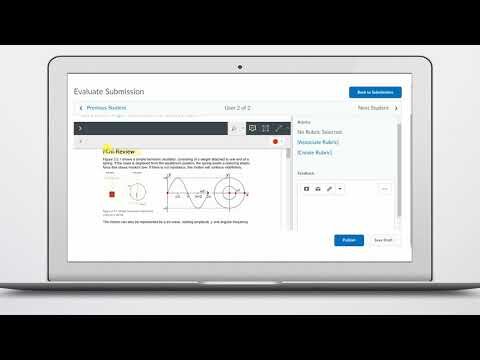
Instructors use the Dropbox tool to see students’ submission times, download Dropbox submission folders to their computer, view submissions on the Evaluate Submission page, associate Dropbox submission folders to grade items/rubrics, and return submissions with grades and feedback.

In the Folder Submissions area, instructors can view students' submissions and submission dates, eliminating the need to collect assignments and making it easy to track when files were submitted.

Instructors can create categories to group and organize assignment submission folders. They can also restrict access to assignment submission folders by date and time, group membership, or use special access permissions.

Accessing the Dropbox Tool

The Dropbox tool is one of the links found on the default navigation bar of your CourseLink course site and can be accessed directly from that link.

Location of the Dropbox link on a face-to-face course site

For Distance Education (DE) courses, the link appears under the drop-down menu of the Tools link on the navigation bar (provided that the course is using Dropbox).

Location of the Dropbox link on a DE course site

Important Notice

When evaluating assignments using the preview or annotation view, please note that Microsoft DOC or DOCX files may not display accurately to reflect the correct structure or information in the file. D2L recommends downloading the files and opening them in Microsoft Word for an accurate view of the file. Students can also be asked to convert to PDF and review their files for accuracy before submission.

D2L provides a warning each time a proprietary DOC or DOCX file is previewed in the Dropbox tool.

Dropbox warning for DOC and DOCX files. This file has been converted and may have inaccuracies.

New Experience Using the Dropbox

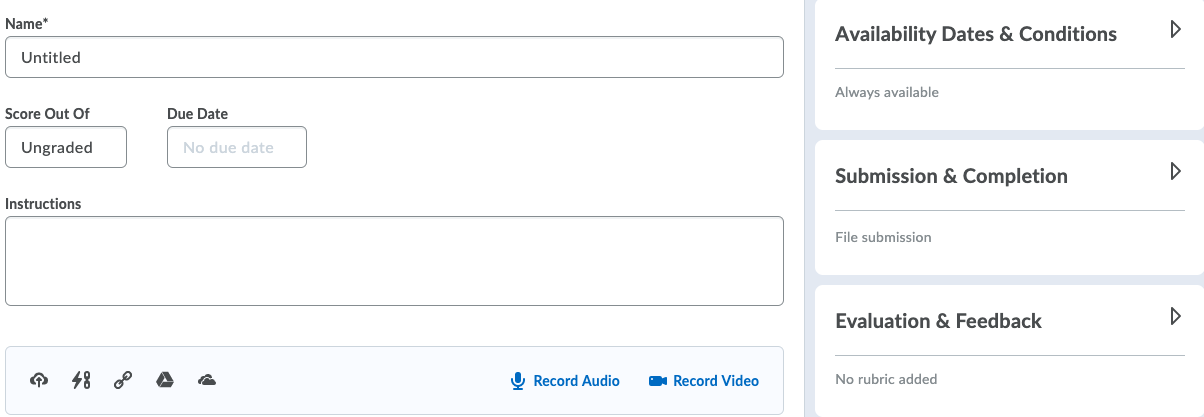
The main panel on the left allows instructors to add a name, score out of, due date, instructions, and attachments.

The panel on the right allows instructors to organizes more advanced options. This includes start and end dates, rubrics, annotation tools, and Turnitin. When these options are collapsed, summary text provides details about which settings are active and subtle hints that aid in the discovery of additional settings. 

The new experience automatically syncs the Dropbox assignments including the name and score to the gradebook. If you create grade items in advance, support for selecting existing grades and categories is also available.

Note: To select the existing Grades column in the Dropbox, you must enter a score in the Score Out Of text field.

Screen Shot 2020-07-17 at 4.50.19 PM.png

Important Note for Instructors Using the Multi-Evaluator Tool

If you choose to enable multiple evaluators and aggregate results, please ensure that all assigned evaluators complete their assessments for each submission. The aggregated result will only calculate once every evaluator has submitted their evaluation — a single completed evaluation will not generate the final aggregated score.


When and why is it a good idea to use the Dropbox tool?

The Dropbox tool is a great way to collect student assignments online. There are many advantages to using Dropbox for assignment collection, including:

Access Control and Submission Tracking

The ability to restrict access via start, end, and due dates

Grading and Assessment

Each Dropbox folder will allow a TA or instructor to assign a grade to a students work either as a simple score, or when a rubric is attached, a score as well as the completed rubric will be available to the student once published. That grade and the corresponding feedback will automatically transfer to the student’s corresponding grade item when published.

When working with group submissions, all members of the group will receive the same feedback and grade.

Integration with Turnitin

Similarity checking and digital markup

Providing Feedback

When grading student submissions to a Dropbox folder, an instructor or TA will be able to leave feedback via text, file attachments, audio recording, or video recording. This feedback becomes available to the student as soon as their grade is published via the Dropbox and the corresponding grade item (if linked).

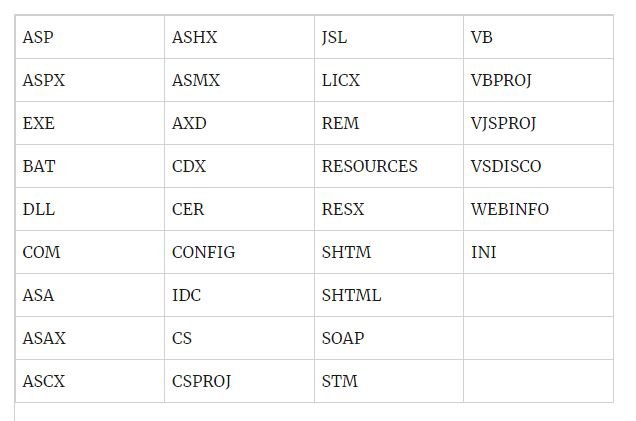
Restricted Files

These are the file types that are restricted from being submitted to the dropbox.

Using the Dropbox tool?

For the most up-to-date information on how to setup a Dropbox folder, please follow the links below to the Brightspace Help documentation site.

Please note that the documentation on the Brightspace Help site refers to the Dropbox tool as Assignments, however CourseLink still uses the original name of the tool (Dropbox). They are the same tool.
— CourseLink Support

Tutorial Videos


Dropbox FAQs

Summary Block
This block has no content yet. Items you add to the page connected to this block will display here.


Need More Help?

If you're still having trouble, please contact the CourseLink Support team for assistance.



Discussions

What is the Discussions Tool?

Use the Discussions tool in your course to encourage students to share thoughts on course material with their peers. You can set up forums and topics for students to ask questions, discuss course content and assignments, and work together in assigned groups.

Accessing the Discussions Tool

The Discussions tool is one of the links found on the default navigation bar of your CourseLink course site and can be accessed directly from that link.

Location of the discussions link on a face-to-face course site

For Distance Education (DE) courses, the link appears under the drop-down menu of the Tools link on the navigation bar (provided that the course is using Dropbox).

If you are using a custom navigation bar and the Discussions link has been removed, you may re-add it. For more information on that process, please see our Navigation Bar page.

New Discussions Experience: Creating an open topic

The default setting for a topic is “open”.

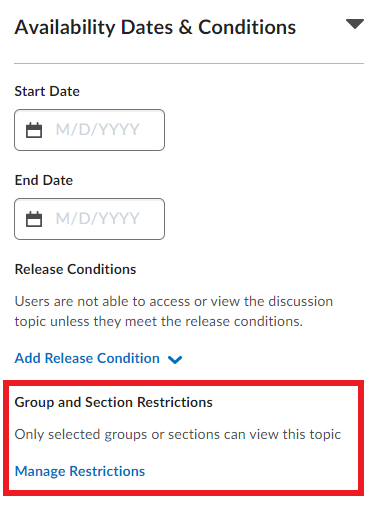
Although the message under Group and Section Restrictions says, “Only selected groups or sections can view this topic”, as long as you don’t restrict the topics to specific groups, it will remain open for all students. This is a somewhat confusing message.

Location of Manage Restrictions button highlighted on the discussion topic settings.

You can verify that the discussion topics are open to all students by reviewing the Group and Section Restrictions and confirming that “Restrict topic” is selected (confusing language) and none of the options below are selected.

The Group and Section Restrictions for a discussion topic. The select who will see this topic area is highlighted and none of the options are selected.

Create a Group Discussion

To connect groups to a discussion topic in CourseLink, follow these steps:

  1. Navigate to Discussions in the navbar.

  2. Create a Discussion Forum:

    • If you don’t already have a forum, click "New Forum" and give it a title (e.g., "Group Discussions").

    • Save the forum.

  3. Create a Discussion Topic:

    • Within the forum, click "New Topic."

    • Choose the forum you just created.

    • Enter a Title and Description for the topic.

  4. Restrict to Groups:

    • Under "Availability Dates & Conditions" click on “Manage Restrictions” under "Group or Section Topic."

    • Select “Restrict topic and separate the threads” as users in the selected groups/sections can view this topic but will only see threads from their group/section.

    • From the dropdown menu, choose the Group Category you created earlier.

  5. Set Additional Options:

    • Configure settings like availability dates, grading, and assessment options as needed.

    • Click "Save and Close."

Using the Discussions Tool

For the most up-to-date information on how to use the Discussions tool, please follow the links below to the Brightspace Help documentation site.

Tutorial Videos


Discussion Tool FAQs

Summary Block
This block has no content yet. Items you add to the page connected to this block will display here.


Need More Help?

If you're still having trouble, please contact the CourseLink Support team for assistance.